Accessing Files on Pythia
Pythia Mount Point |
Type |
Managed Quota |
Auto-deletion |
Features |
|---|---|---|---|---|
|
NFS |
Yes |
No |
user home directories shared with Mercury |
|
NFS |
Yes |
No |
share project directories shared with Mercury |
|
GPFS |
Yes |
No |
shared, performant, parallel-access, scalable, persistent |
|
Local NVMe |
No |
Yes, after job completion |
high-speed, short-lived; suitable for demanding GPU applications |
Long Term Storage
Home Directories
Booth home directories are auto-mounted on Pythia upon login. User home directories on Pythia are the same home directories present on Mercury. These directories are private and cannot be shared.
/home/<BoothID>: user’s private home directory
Project GPFS Space
Pythia has 120 TB of shared GPFS space in /project_gpfs.
There is a $1000/TB cost charged under a PI’s account for using GPFS storage, see our storage policy on this section
When running GPU-accelerated workloads on an HPC cluster, data locality and I/O performance can significantly affect job runtime. To maximize GPU performance, it is recommended to copy input data to GPFS storage before running GPU-intensive jobs and to store output data there during computation.
You can review our section on how to efficiently prefetch data to GPFS /project_gpfs/ here
Note
The GPFS project directory is only available on the compute nodes, not on the front end nodes.
Short Term Storage
Local NVME
The gpu nodes pgpu006-012, pgpu016-021 have 56TB of local NVME storage under /hpc_temp
Local NVME storage availability under /hpc_temp varies across nodes, with pgpu006-011 and pgpu016-021 offering 56TB, while pgpu012-15 provide 1.5TB.
This is the recommended place to store temporary job files such as transformed data, temporary logs, parallel job metadata or intermediate output. It is not to be used for file/data storage not related to running jobs.
We recommend placing your scratch files within a personal folder organized by job number: /hpc_temp/$SLURM_JOB_USER/$SLURM_JOB_ID/.
Here, ${SLURM_JOB_USER} and ${SLURM_JOB_ID} are environment variables which you can query in your job script. Your code should automatically delete the job-specific files and folder upon successful completion. Files placed there will automatically be purged after 21 days on the Hopper nodes and 7 days on the L40s nodes.
I/O Tools
Command line utilities
A common way of transferring files to and from a remote cluster is to use the scp command.
# copy a file to a local dir; use the same name for the file
$ scp <BoothID>@pythia.chicagobooth.edu:<src_dir>/myfile.txt <dst_dir>/.

# copy a file to a local dir; use a different name for the file
$ scp <BoothID>@pythia.chicagobooth.edu:<src_dir>/myfile.txt <dst_dir>/renamed.txt

# copy a directory using the recursive flag (-r)
$ scp -r <BoothID>@pythia.chicagobooth.edu:<src_dir> <dst_dir>
If you need to check the space available in your home directory or project share, you can use the df -h command.
# Check home directory space
$ df -h /home/<BoothID>/
Filesystem                                                     Size  Used Avail Use% Mounted on
sisyphus-n.chicagobooth.edu:/ifs/home/<affiliation>/<BoothID>  14G   7G   7G    50% /home/<BoothID>

# Check project share space
$ df -h /project/<name_of_project>
sftp
Another common way of transferring files is via sftp. One software package that provides cross-platform support for sftp transfers is Filezilla. Filezilla is an easy to use sftp client with a graphical user interface. The split window shows your local machine’s directory tree on one side, and the remote files in the other. Filezilla’s GUI allows simple drag-and-drop for transferring files.
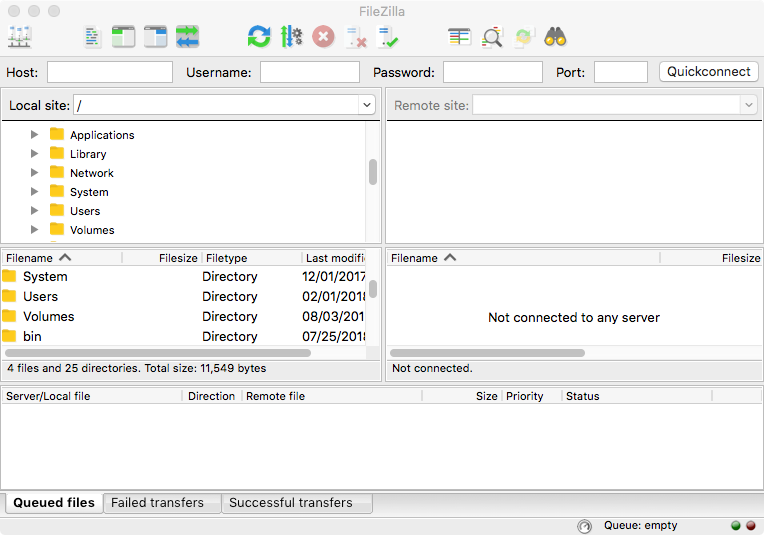
Filezilla
A connection to Pythia can be established by simply entering the following fields and clicking the Quickconnect button.
- Host:
sftp://pythia.chicagobooth.edu- Username:
<BoothID>- Password:
<BoothPassword>
Mounting home directory on a Desktop
Users who are connected to the Chicago Booth network (either through a wired ethernet connection or through the Booth VPN) can access files on Pythia by mapping to their home directory. To map your home directory:
Windows
Note
If you are off campus or on a wireless connection, you must use Booth VPN to access files on Pythia.
Right-click on the My Computer icon.
Click on the Map Network Drive… link.
Choose a free drive letter from the Drive: dropdown.
Enter one of the following for the Folder field
- PhD students:
\\home.chicagobooth.edu\home\phd\<BoothID>- Faculty:
\\home.chicagobooth.edu\home\fac\<BoothID>- Staff:
\\home.chicagobooth.edu\home\staff\<BoothID>- Collaborator:
\\home.chicagobooth.edu\home\collab\<BoothID>
Uncheck the Reconnect at logon checkbox.
Click on the Finish button.
At the prompt, enter your Chicago Booth credentials as follows,
GSB<BoothID>and<Booth password>.
Your Booth home directory will now appear in My Computer under Network Drives.
Note
Project shares can similarly be mounted by using \\project.chicagobooth.edu\<project-name>
Mac
Note
If you are off campus or on a wireless connection, you must use Booth VPN to access files on Pythia.
From the Finder menu, click on Go → Connect to Server…
Enter one of the following for Server Address
- PhD students:
smb://home.chicagobooth.edu/home/phd/<BoothID>- Faculty:
smb://home.chicagobooth.edu/home/fac/<BoothID>- Staff:
smb://home.chicagobooth.edu/home/staff/<BoothID>- Collaborator:
smb://home.chicagobooth.edu/home/collab/<BoothID>
Click on the Connect button.
Click on the Registered User radio button.
Enter your Chicago BoothID and password
Uncheck the Remember this password in my keychain checkbox.
Click on the Connect button.
Your Booth home directory will now appear on your desktop.
Note
Project shares can similarly be mounted by using smb://project.chicagobooth.edu/<project-name>
Snapshots and File Recovery
Snapshots on Pythia are performed nightly for user home directories, project shares and GPFS. Nightly snapshots are available for 30 days for project shares and 15 days for GPFS storage and provides users with a short-term file versioning system. Files older than 30 days are not recoverable. Note that “.snapshot” is a hidden folder not visible by directory listing commands. Here are some example commands for using snapshots.
# Navigate to the hidden ".snapshot" folder
$ cd /project/IT/.snapshots

# View available snapshots taken in last 30 days
$ ls
project_30day_2026-04-25_23-45
project_30day_2026-04-24_23-45
project_30day_2026-04-23_23-45
project_30day_2026-04-22_23-45
# Restore a single file
cp ~/.snapshot/project_30day_2026-04-22_23-45/file ~/target/folder/.

# Navigate to the hidden GPFS ".snapshots" folder
$ cd /project_gpfs/.snapshots/<boothID>

# View available snapshots taken in last 15 days
$ ls
@GMT-2026.04.26-04.00.14
@GMT-2026.04.25-04.00.14
@GMT-2026.04.24-04.00.14